¶ Step 1 - Welcome Email
Please follow the steps below for the Exium iOS client installation and activation on an iOS device.
You will receive an email with the subject line ‘Welcome [Workspace : customername]. See the guide on how to initiate an email invite here: Instructions for MSP Admins.
Note: Open the welcome email in a computer as you will need to scan two QR codes displayed on the computer screen with your mobile device.
The graphic below shows what this email looks like.
Note that this email expires after a limited time. If it does expire, you can use the sign-in link at the bottom of the email to proceed or contact your IT admin.

¶ Step 2- Click on the iOS Logo
You should open this email on your laptop even though you are installing the client on your iPhone/iPad. This email will give you QR codes that you will scan with your mobile device to complete the installation.
Click on the iOS logo in the welcome mail; this will open a browser window (example shown below).
This web page includes two steps that you need to take. Keep the browser window open and refer back to this window for the next two steps.

¶ Step 3 - Install the Agent
Scan the QR code using your IOS device. This will open Exium SASE Agent app in App Store. Click on GET button to install the agent.
¶ Step 4 - Scan the QR Code to Activate and Configure the Agent
Scan the QR code (using iPhone/iPad inbuilt scanner app) displayed in the browser window using your iPhone or iPad.
- If the Exium SASE Agent app is not installed: You will be redirected to the Apple App Store. Tap Get to install the app. Once installed, Click on Open to open the app.
- Now scan the QR code again by using In-App Scanner button icon , The app will open automatically and begin creating the tunnel configuration right away.
If you don't have the Exium SASE app, scan the QR code to install it from the App Store. Once installed, scan the same code a second time to complete your activation.
.png)
- If the Exium SASE Agent app is already installed: Scan the QR Code by using the In-App Scanner button icon as shown below .The app will open automatically and begin creating the tunnel configuration right away.


Step 5 — Allow VPN configuration
After successful activation, a system prompt will appear asking "SASE" Would Like to Add VPN Configurations. Tap Allow to proceed.
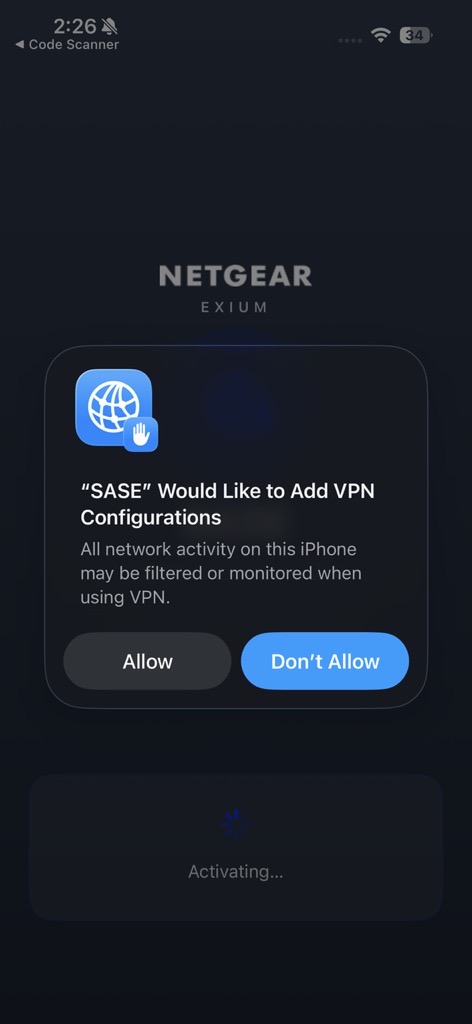
What happens next: Tapping Allow redirects you to your iPhone/iPad Settings, where the VPN profile will be added automatically under General → VPN & Device Management.
- Open Settings on your device.
- Go to General.
- Tap VPN & Device Management.
- You will see the Exium SASE VPN configuration listed and added there
¶ Step 6 - Connect client
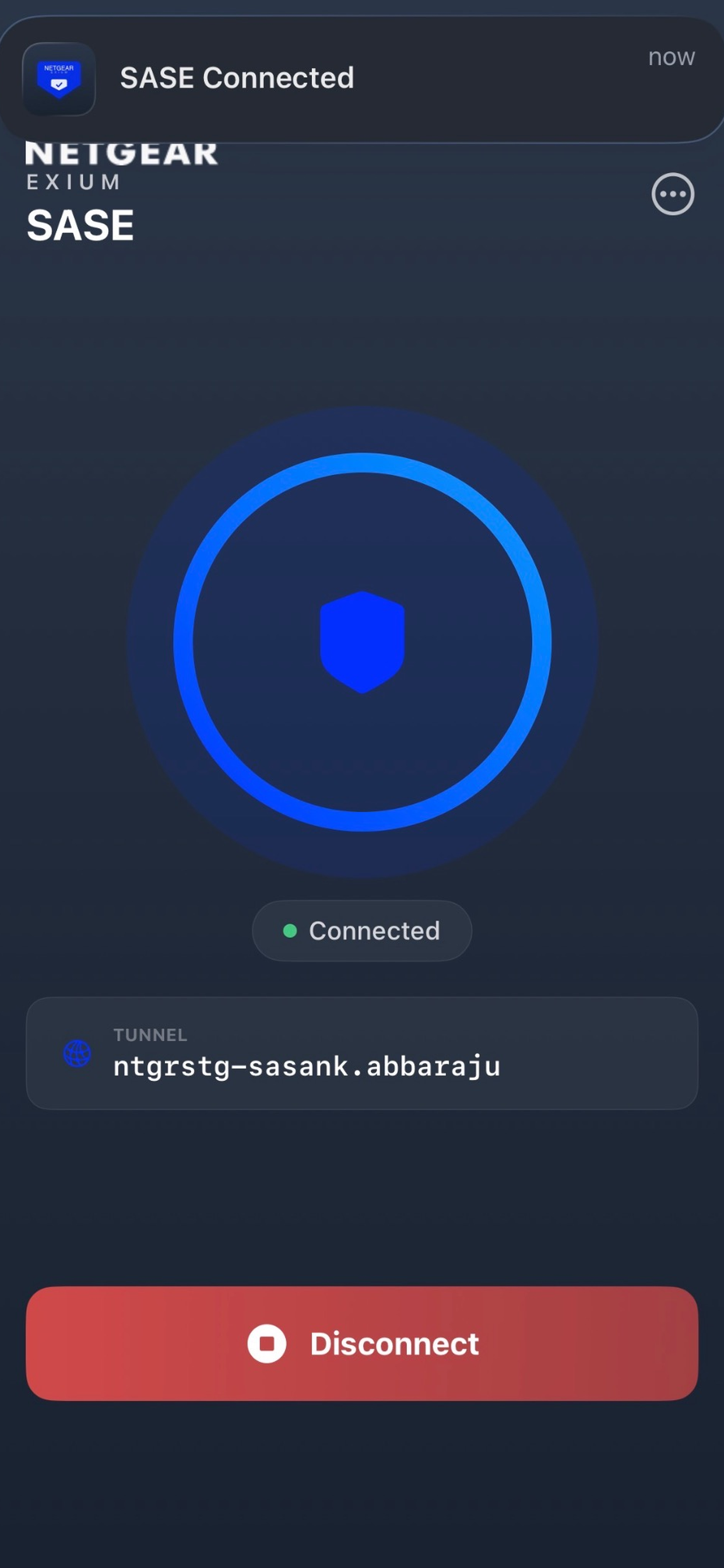
Once the tunnel is created, it activates automatically. The shield icon turns Blue, indicating that your device is now connected and protected. You can securely access company resources right away.
¶ Step 6 - Disconnect Client
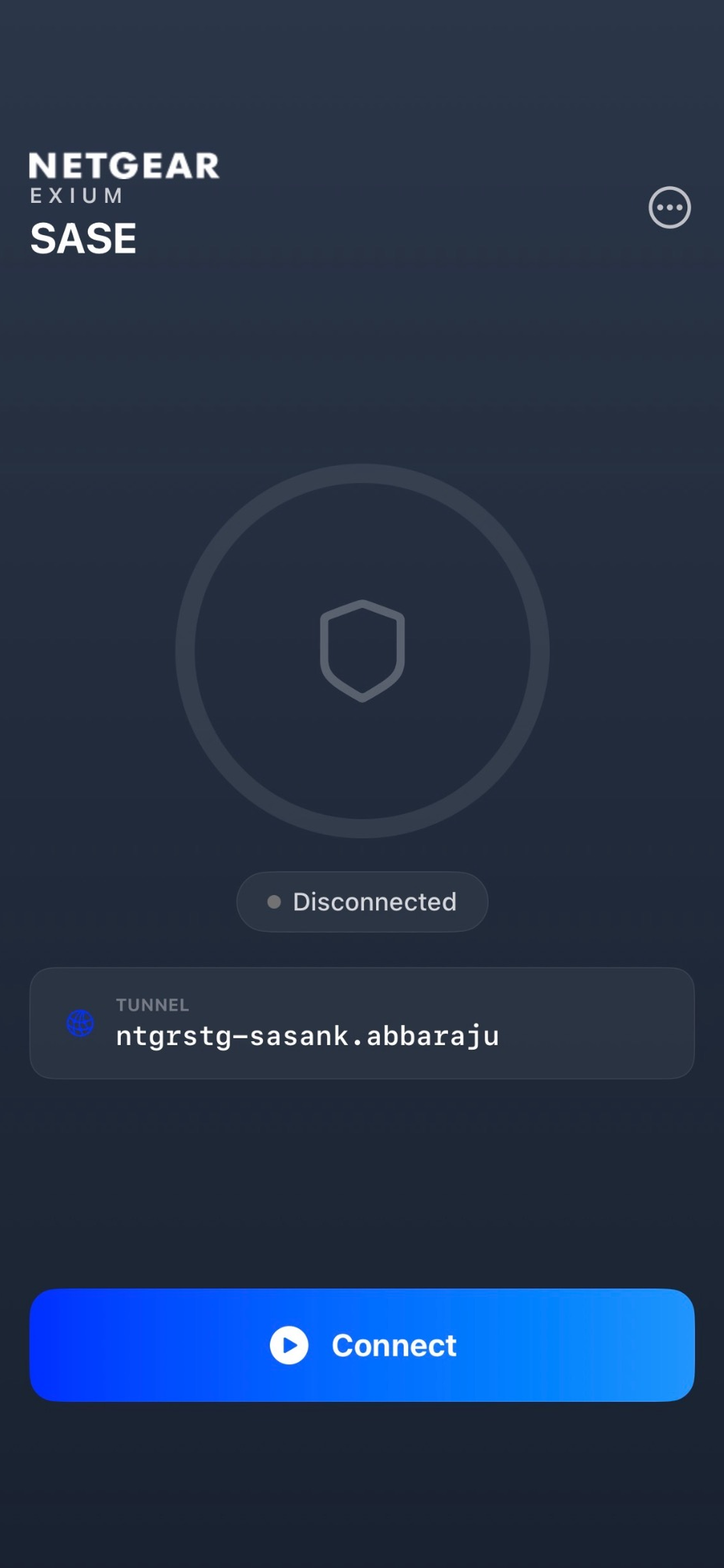
To disconnect, tap the Disconnect button. The shield icon will turn grey, indicating that your device is no longer connected to the tunnel. To reconnect, tap the Connect button.
Installation Complete!
To learn more about implementing SASE, XDR, IAM/ MFA, and GRC for your organization and explore tailored solutions that meet your unique requirements, contact Exium at partners@exium.net for a consultation or demonstration. If you are ready to get started, check out our testing and onboarding process.